Install & Update
General Guidelines
Setup Your FSE Themes
Wizard Setup
After installing the FSE theme, you will be redirected to the Wizard setup page. This setup wizard is crucial for configuring your theme and ensuring all its features work seamlessly. It will guide you through the necessary steps to customize and optimize your theme according to your needs. Following the wizard’s instructions will help you get the most out of your FSE theme and ensure everything is set up correctly.
Common occurrence: “I skipped the wizard setup, how do I get back?”
Don’t worry if you skipped the wizard setup; you can easily return to it later. Just click the “Complete Wizard Setup” button on the notice banner in your admin dashboard to resume the setup process.
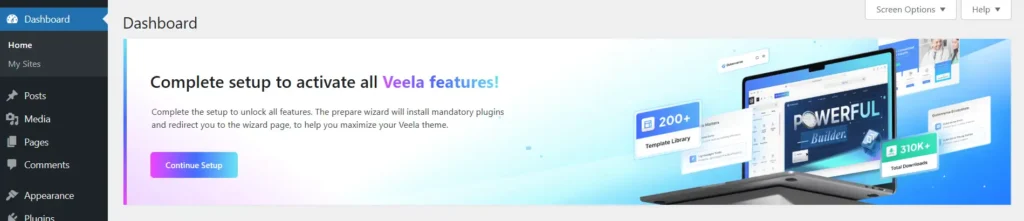
1. Install Required Plugin
To access your FSE theme’s features, please install the required plugins.
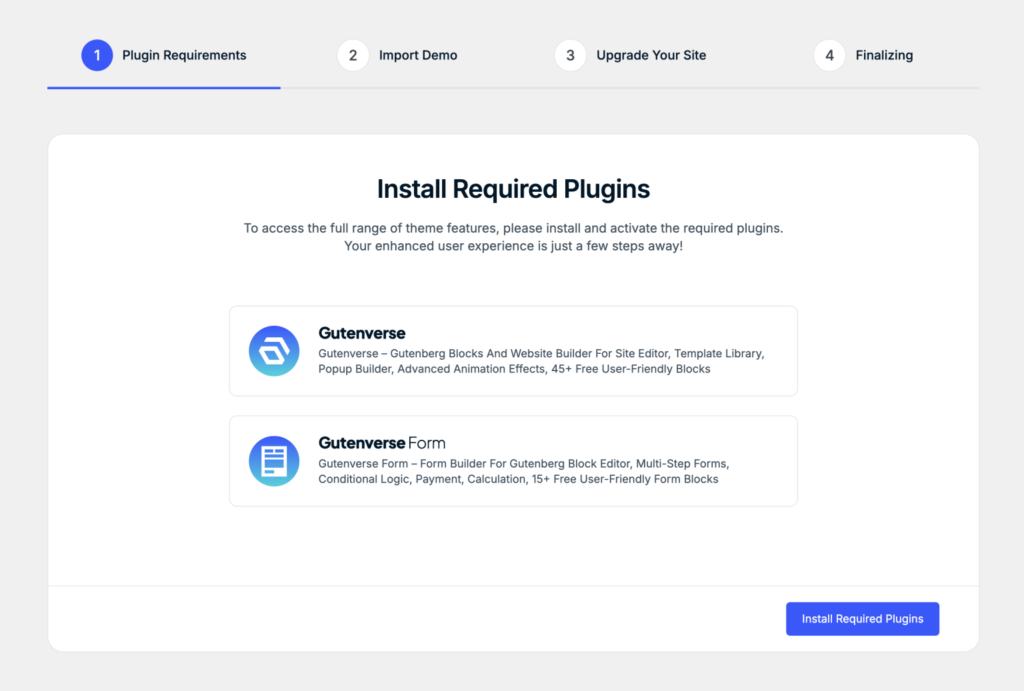
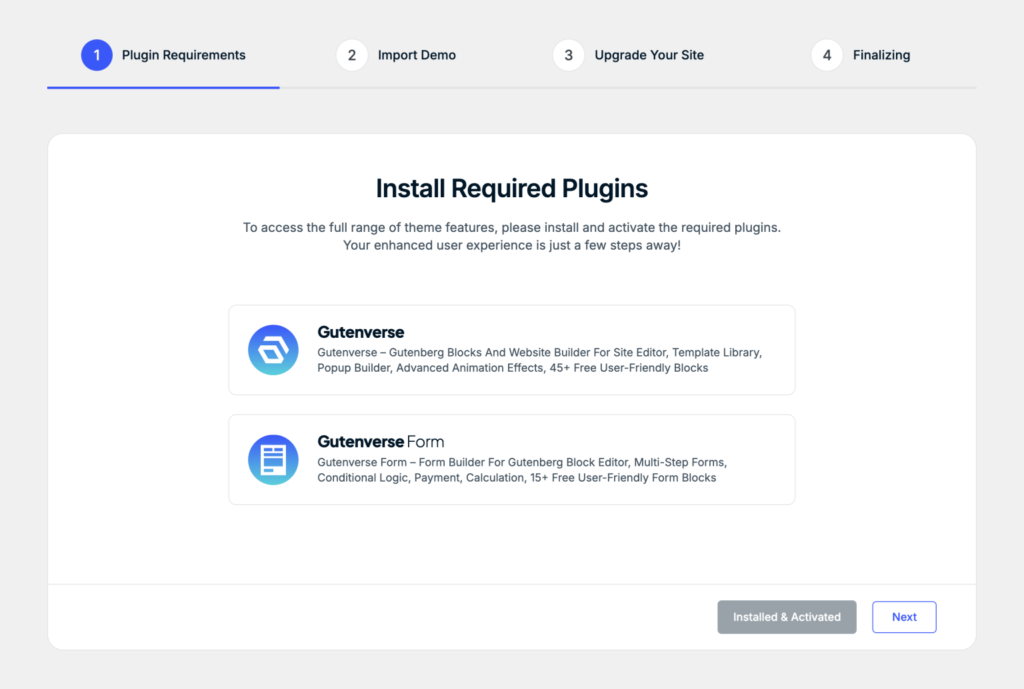
Once you’ve installed the required plugins, click the Next button to proceed to the next step.
2. Import Demo
In this step, you have the option to select which page template you would like to import based on your preferences and needs.
You can choose a single template that best fits your website or, if you prefer, import all available templates at once.
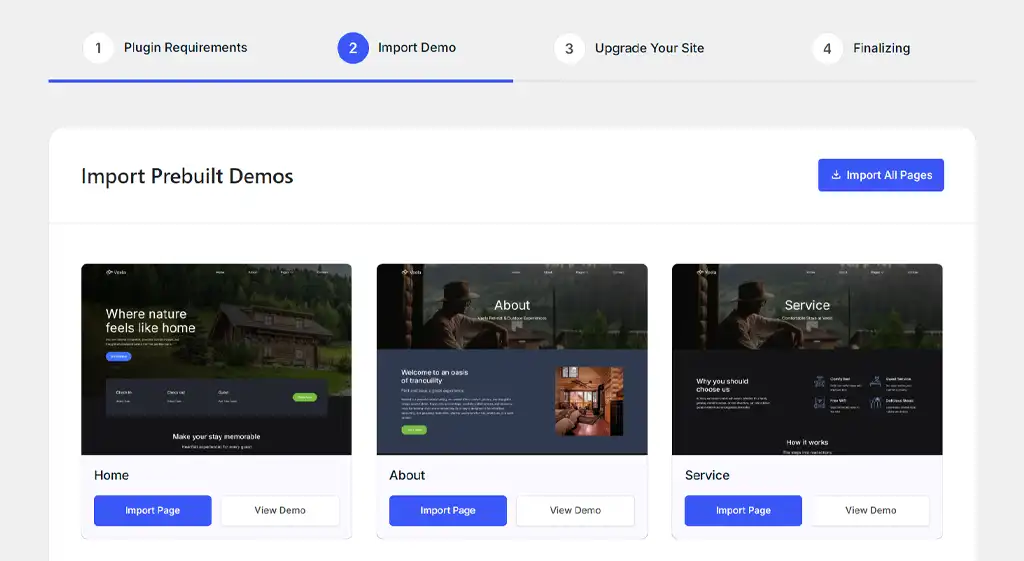
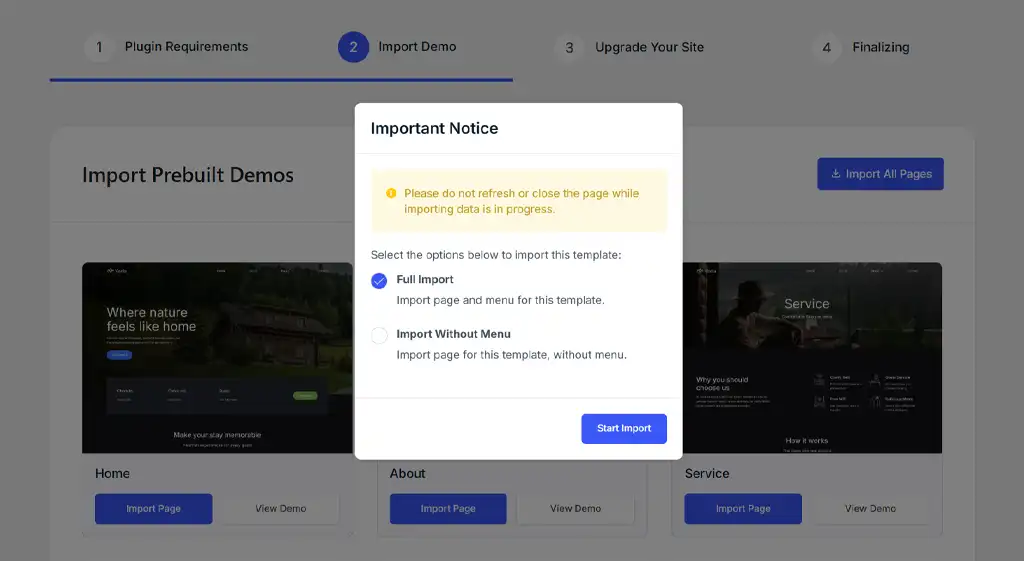
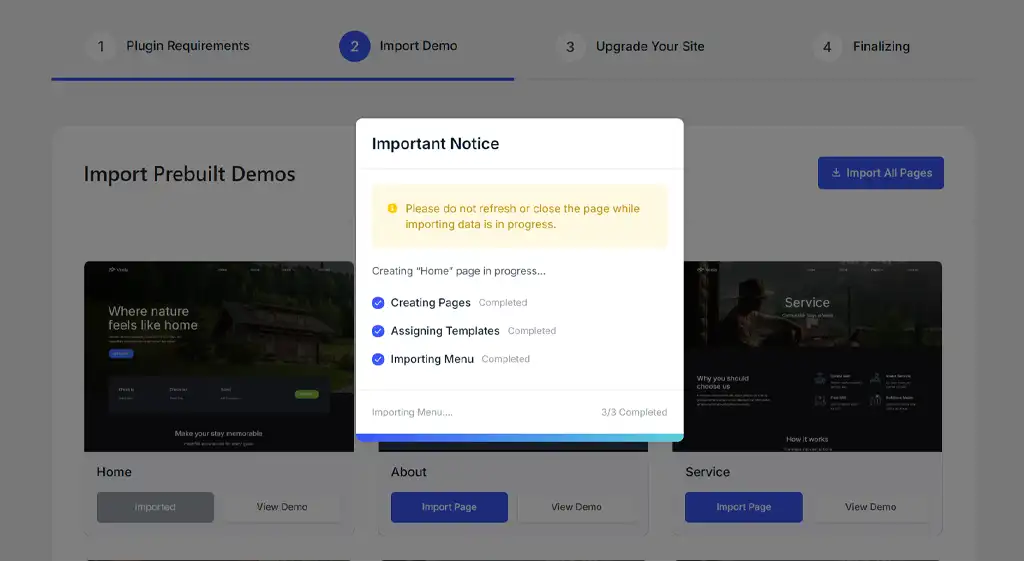
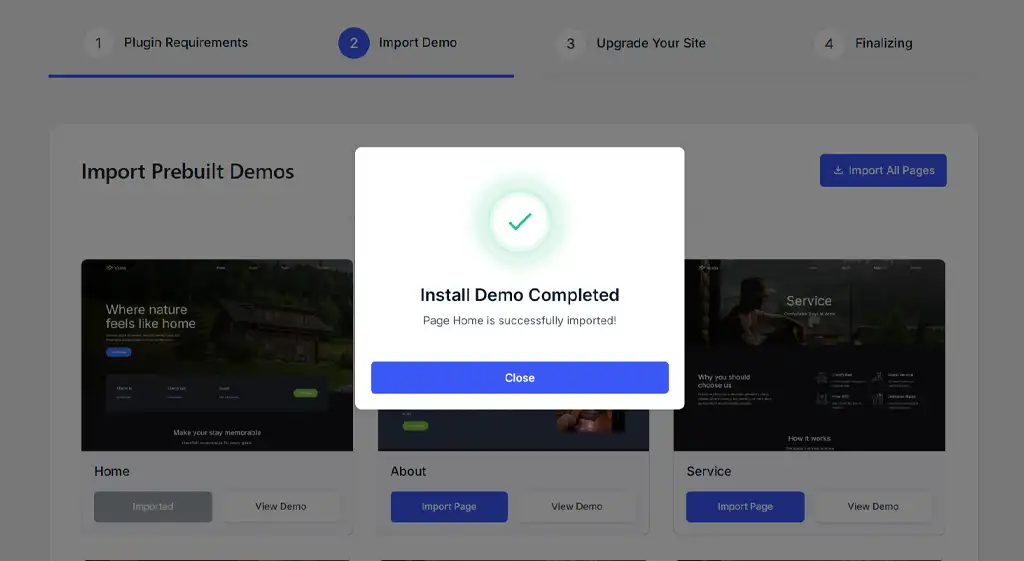
After you’ve finished importing your selected page templates, click the Next button to proceed.
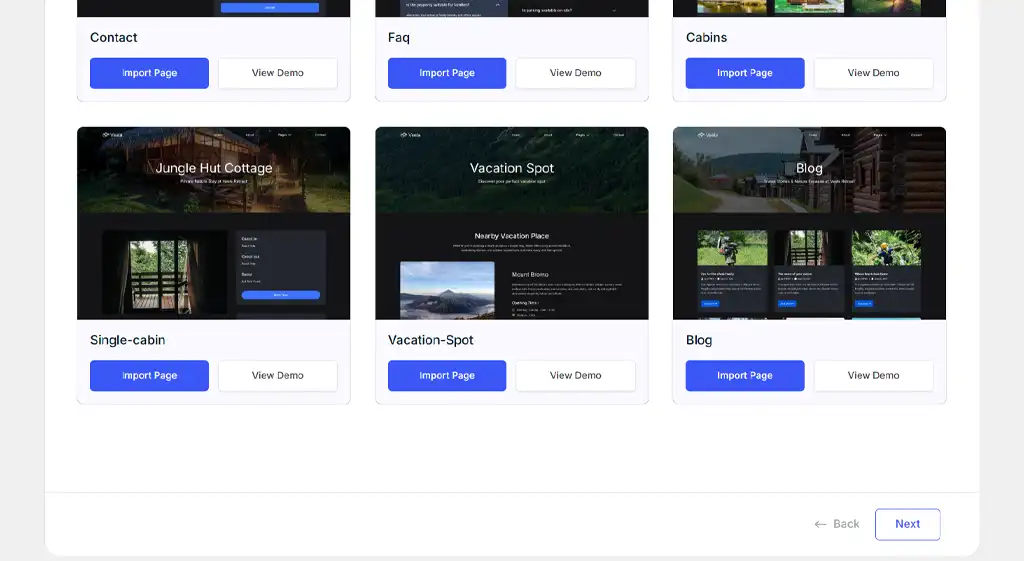
3. Final
In this section, if you’re interested in upgrading to the premium version, click the “Upgrade to PRO” button to learn more about the additional features and benefits available.
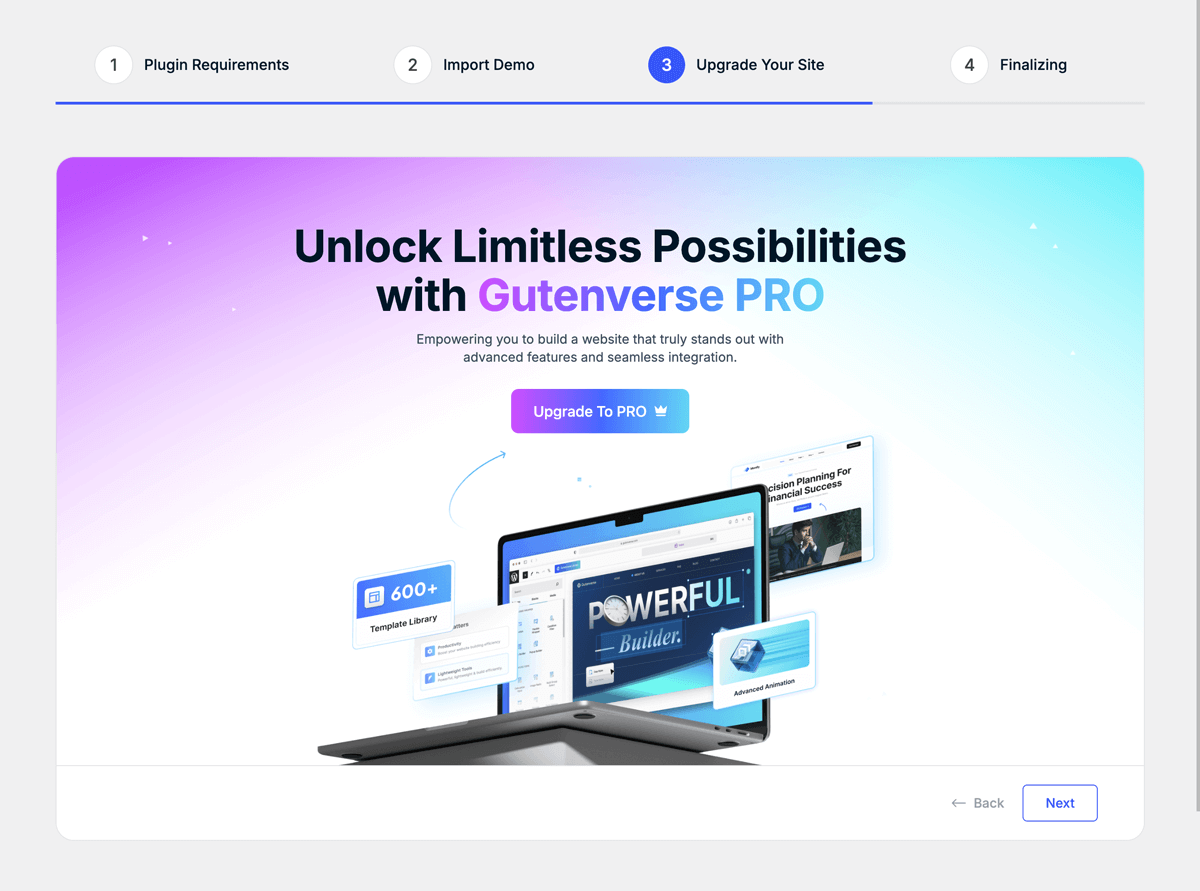
You can click the “Next” button to proceed to the final page of the wizard.
On this final page, click the “Visit Dashboard” button to be redirected to the FSE theme dashboard.
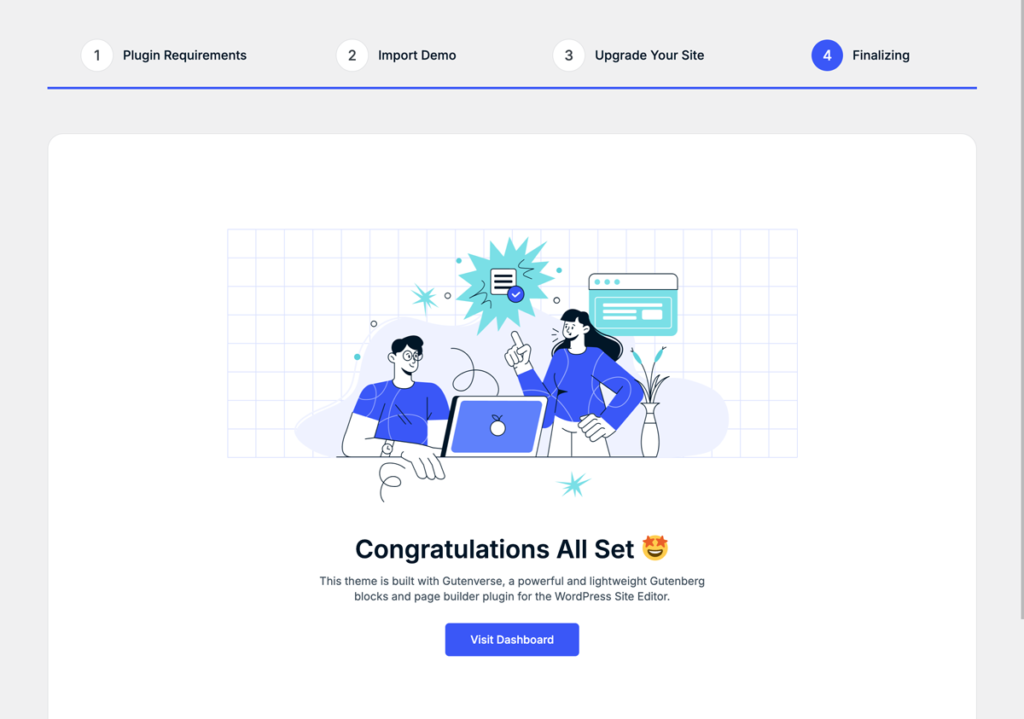
In this section, if you’re interested in upgrading to the premium version, click the “Upgrade to PRO” button to learn more about the additional features and benefits available.
Dashboard Page
Inside the FSE theme dashboard, you’ll find several options that you might have missed during the wizard setup:
- Install/Reinstall Required Plugins: Install all necessary plugins.
- View & Import Demos: Explore and import demo templates for your site.
- Documentation: Check our documentation to find the best solution for you.
- Get Support: Reach out for assistance if you need help.
- Join Newsletter: Subscribe to stay updated with the latest news and updates.
- Upgrade to PRO: Access premium features by upgrading to the PRO version.
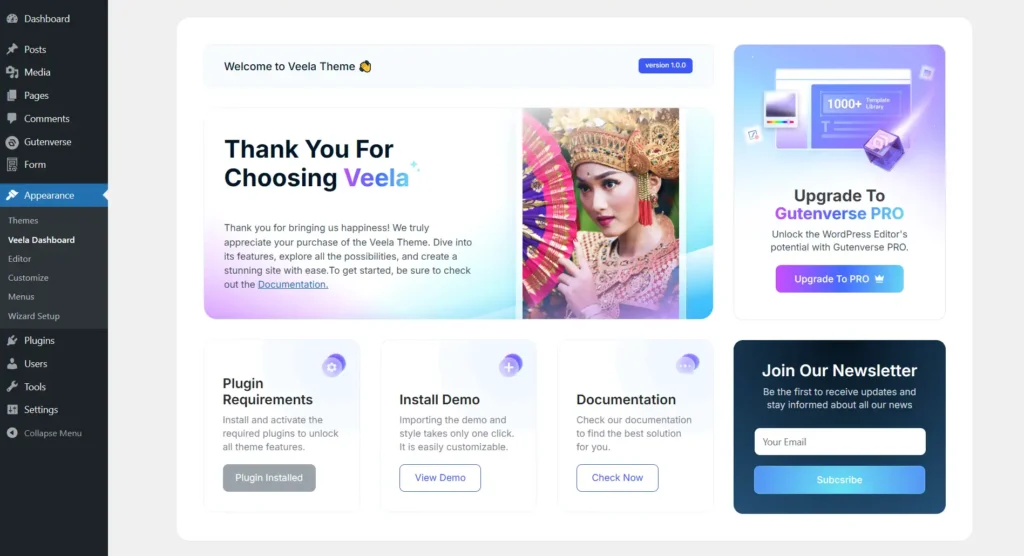
Your theme setup is now complete.
The next additional step is to set up a form action, which is necessary if your FSE theme utilizes the Gutenverse Form plugin or includes any contact forms. This step ensures that your forms function correctly and can handle submissions as intended.
Please check this article: